
When you view a website, your browser (Chrome, Safari, Firefox, etc) saves a copy of the site styling to make the site load faster for you as you view other pages or come back to it later — this is known as caching.
Therefore, when viewing changes to your site, it’s important to use your browser’s private or incognito window setting. It’s easier for you than clearing your browser cache every time you need to do a review. That way you will see the latest code.
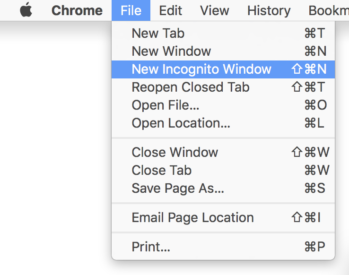
Chrome
- File > New Incognito Window
- paste the URL in the window that appears + hit return/enter on your keyboard
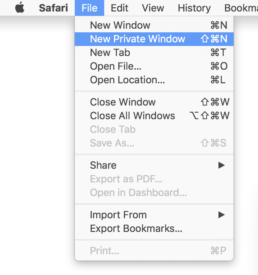
Safari
- File > New Private Window
- paste the URL in the window that appears + hit return/enter on your keyboard
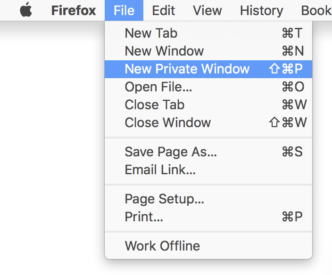
Firefox
- File > New Private Window
- paste the URL in the window that appears + hit return/enter on your keyboard
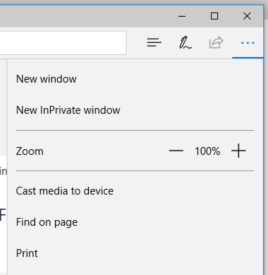
Microsoft Edge
- click … on the far right of your browser window
- select New InPrivate Window
- paste the URL in the window that appears + hit return/enter on your keyboard
Mobile Devices
Chrome
- on your phone or tablet, open the Chrome app
- to the right of the address bar, tap More
New Incognito tab
- a new window appears. In the top left, check for the Incognito icon


Safari
- open Safari on your iPhone and tap the new page icon in the lower-right corner
- tap Private in the lower-left corner
- tap the + symbol or tap Done to begin browsing in private mode